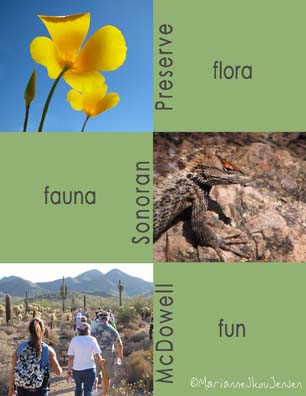
All posts by Marianne Skov Jensen

creating a greeting card

With so many sources for printing your card creations and costs dropping every year,
why would you want to print your own cards? The answer is that maybe you don’t!

If you want total control over the process, though, you’ll want to print your own.
For instance, most companies but their logo on your cards. It’s usually small, but
I don’t like it. The other issue is that you can’t find the size or type of paper you want.

For those who hoped I would post a tutorial for creating a card, click the photo 🙂
Enjoy and let me know if you have questions!

2009_07_22

greeting card stock

2009_07_20

The very FIRST STEP in creating a greeting card is to choose a card stock.
I personally use Red River pre-scored card stock in two sizes. 7 X 10 and 6.25 X 9.
Folded they are 5 X 7 and 6.25 X 4.5. I typically use matte stock but also gloss on occasion.

Recommendations from friends help in choosing your card stock but ordering a SAMPLE pack
from sources will save you money and LOTS of time. For instance, there are differences in
thicknesses, finishes and there are varying shades of white. It’s important to see how your
printer handles thick stock and how ink looks on each color sample.

When the sample pack arrives, take the time to print an image on each sample.
DON’T SKIP THIS STEP! Here’s how to set it up in your image editor:

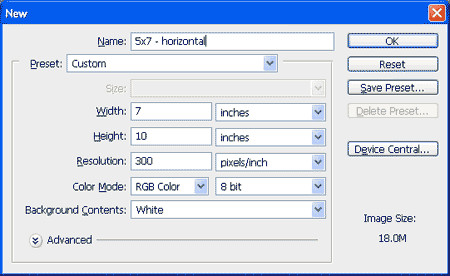
1. Create a new document with the EXACT dimensions of your card stock.
For instance, if your card stock is 7 x 10, then your new document should be 7 X 10.
(Folded, this size will be 5X7)
The Resolution and color space should be what you normally use when you print.
2009_07_20_2

2. Prepare an image and crop it to 5X7 at the resolution you set for your document.
(Note: if your image is larger than the document, you can of course just resize it)

3. Drag the image onto the new document. Since this is just a test and since most samples
have text on them, I don’t worry about image position but you could be as precise as you like.

4. Now that you have a test file ready, you can print it on each sample.
It’s important that your printer is set with the correct preferences for each sample.

The first thing you’ll set in the printer driver is the size of your paper.
In the case of card stock, this usually means you’ll need to define a custom size.
You also want the printer to know what kind of paper you’re using.
In the case of Red River, they have profiles for most or all of their papers.
Once you’ve set everything, SAVE these settings with the name/size of the card.
This will save you from having to enter all this information again.

NOTE TO NEWBIES:
If you’re completely new to printing, don’t stress about all these settings.
There’s only one you must know and that’s how to set a custom size (check your printer manual)
Other than that, you just need to set the paper TYPE (matte or glossy) and the QUALITY.

Your printing results might just rival the so called “experts” 🙂

Finally….I haven’t seen it but Red River has a Greeting Card Designer available.
It looks to be worthwhile if you’re completely new to creating cards.
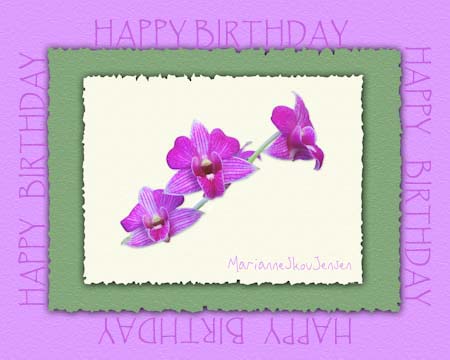
greeting cards unwrapped

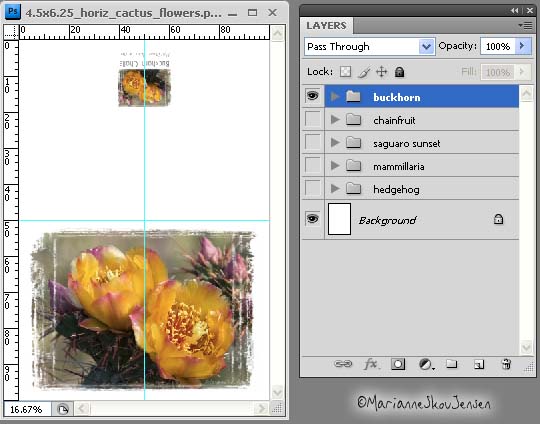
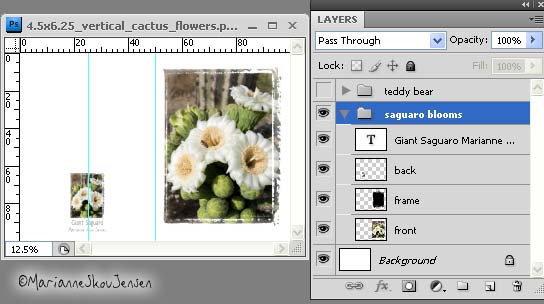
Here’s the Layers Palette of a vertical card showing an open and visible Group folder.
Do you get the idea that I have complete control over all elements?

For instance……
Maybe I don’t want the fancy edge on the next card or maybe I want to change the text.
OR maybe I want to replace the photo with a different Saguaro bloom! Yup……
I could even include several blooms in this group and only turn on the one I want.

Layers allow for ultimate control over content

greeting cards

Heat kept me inside today so I spent time in my digital darkroom creating greeting cards.
What I want to show you is that I only use two files to create ALL my cards.
One file is in horizontal format and the other is vertical. Each file has multiple images.

Layer Groups are the key to keeping the image components and text nicely organized.
When I’m ready to print a card, only the group with the desired image is turned on.
It takes a little more time to set up but it sure is nice to have all your cards in one file!

By the end of the day, I had 10 cards in this file

Adobe Lightroom

Today I’m sharing an image from my archives and also my thoughts regarding Lightroom.

Thinking about our October Utah road trip this morning

I’m a huge fan of Adobe Lightroom. I bought it primarily to use as an archiving tool but
it now handles 99.9 percent of my image workflow so I’m using Photoshop less and less.
I agree with many who feel that Lightroom along with Photoshop Elements may be all you need!

If you’re curious about what Lightroom can do, click on the following link for a sample workflow.
It’s from Lightroom guru Matt Kloskowski. (videos run consecutively with a commercial in the middle).

http://worldwidephotowalk.com/lightroom/

upside down and backwards

Here’s something you probably don’t know about me…..I can write backwards easily.
The kind of writing you need a mirror to decipher (unless, like me, you can also read backwards)
My friend Carol Leigh is conducting an online photo workshop at the moment and one of her
assignments is halves. Because I love making mirror images, I’m always looking for interesting
halves. What does that have to do with mirror writing? Nothing. Halves…mirrors…I digress alot 🙂

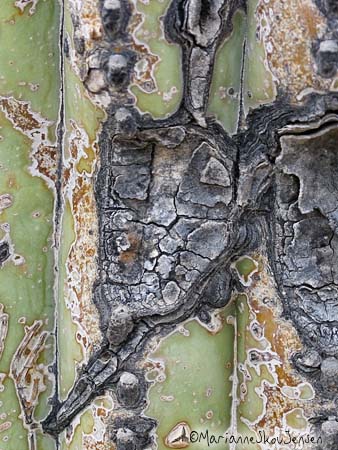
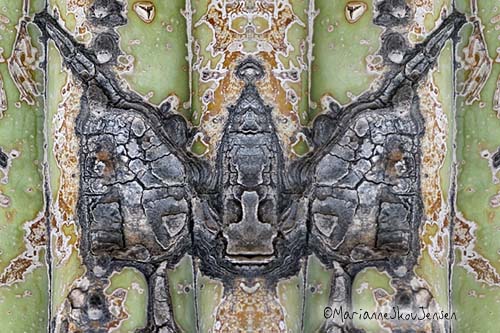
So here’s an example. This scar tissue on a saguaro reminded me of an upside down butterfly wing.

2009_07_15

I followed my MIRRORED tutorial and then flipped the resulting image 180 degrees and voila….
A Goth Moth!

2009_07_15_2

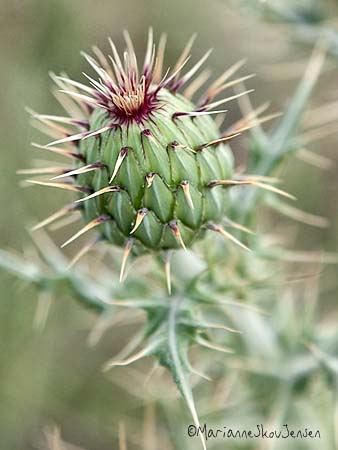
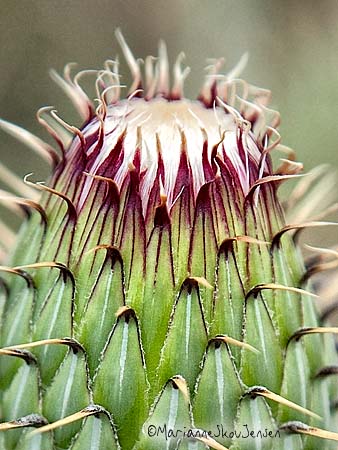
thistle in arizona

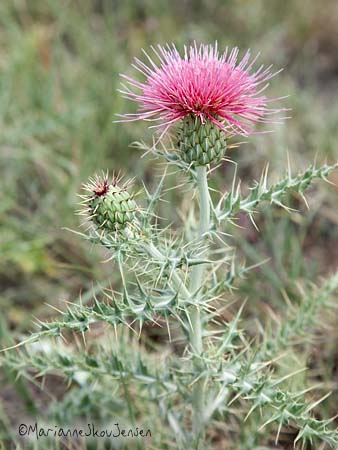
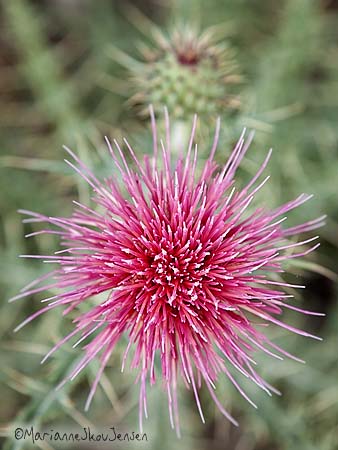
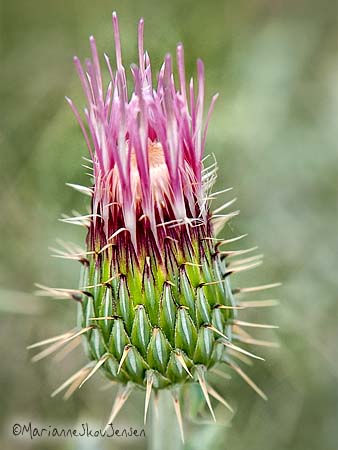
I was going to call this Arizona Thistle (Cirsium arizonicum) because its color and form doesn’t
resemble New Mexico Thistle but I’m not sure since no descriptions I’ve found show a full head.
This particular plant was spotted near Wupatiki Ruins outside of Flagstaff and we saw lots more
as we headed North to the Grand Canyon.

Whatever it is, they’re wonderful photo ops 🙂

2009_07_14

2009_07_14_2

2009_07_14_3

2009_07_14_4

2009_07_14_5

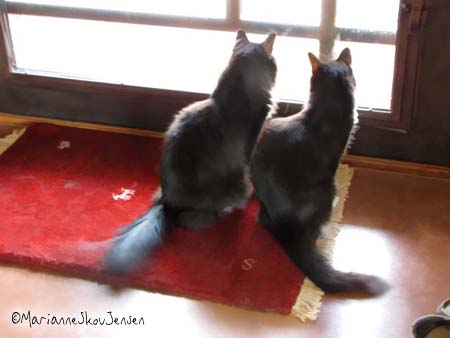
cat meteorologists

When Cleo and Cloe are satisfied just window watching , you know it’s too hot to go outside 🙂

cat meteorologists
cat meteorologists

Grab shot with Canon SX10 at f/4. Overexposed 1.5 stops to compensate for light streaming in.

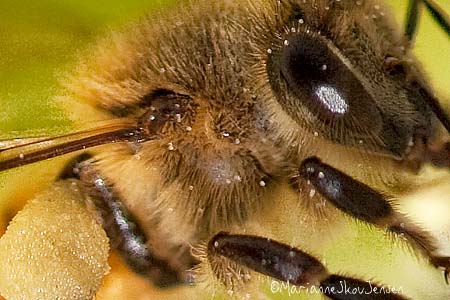
crop at 100 percent

I cropped today’s post as a testimony to the value of using a dedicated macro lens.
It wouldn’t have been this sharp with an extension tube or close-up filter on a regular lens.
(Correction…it might be as sharp but you’d have to be VERY close to the subject).
OK…the fact that it was shot with a 5DMK2 might have made a little difference too 🙂

2009_07_12_2